
How to Use Split View in Aloha Browser: 5 Useful Tips
Use Split View in Aloha Browser to place two tabs side by side and multitask more smoothly on a desktop. Here are 5 practical ways to use it better every day.
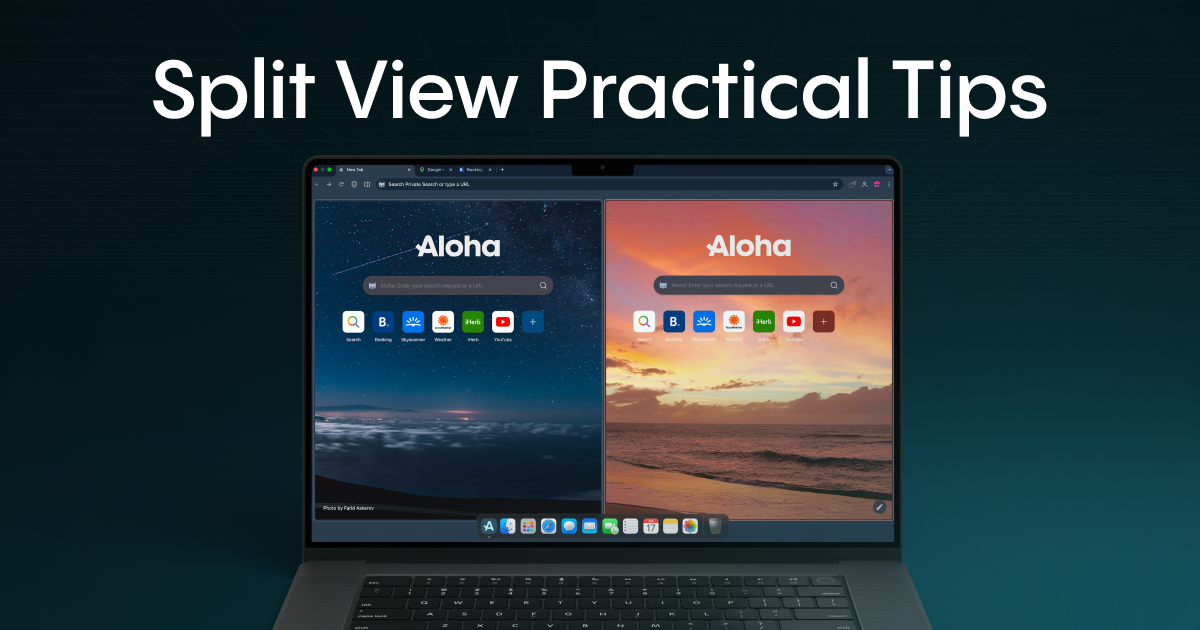
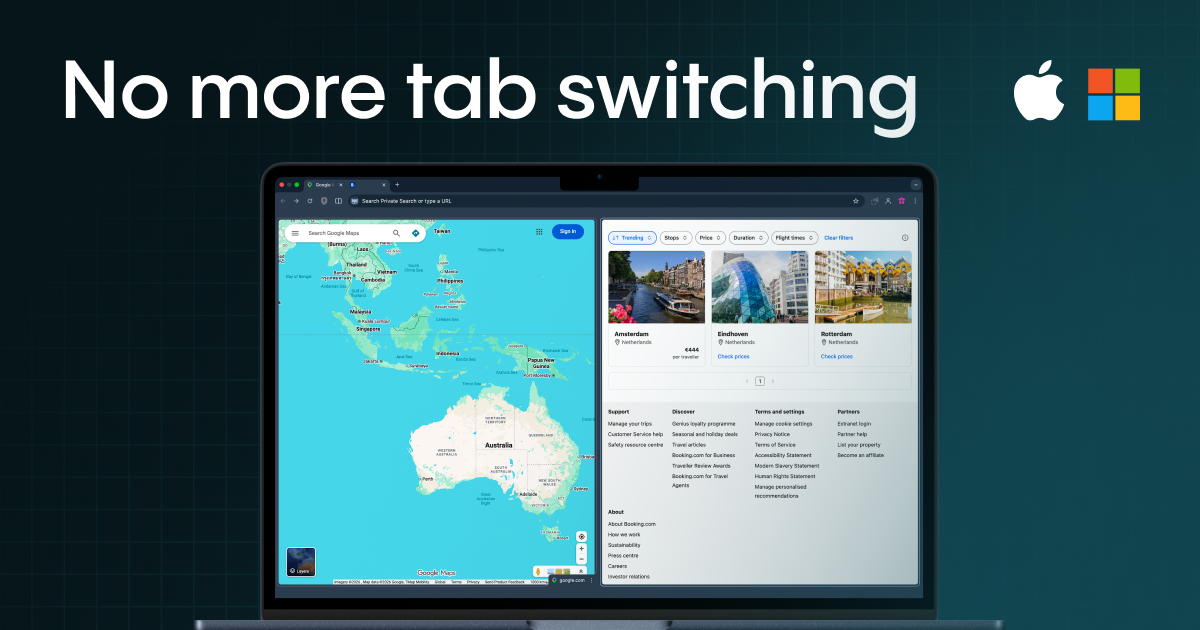
Multitasking should feel simple. With Split View in Aloha Browser for desktop, you can keep two tabs side by side in one window and get more done without constantly switching back and forth.
It’s a practical way to compare pages, take notes, keep a reference open while you work, or watch something while browsing. Previously, we already described Split View as a way to compare data, reference a document while writing, or keep a video open while you browse, so this article fits naturally with the feature’s current positioning on your site.
If you’re new to Split View, here are 5+1 practical ways to use it better every day.
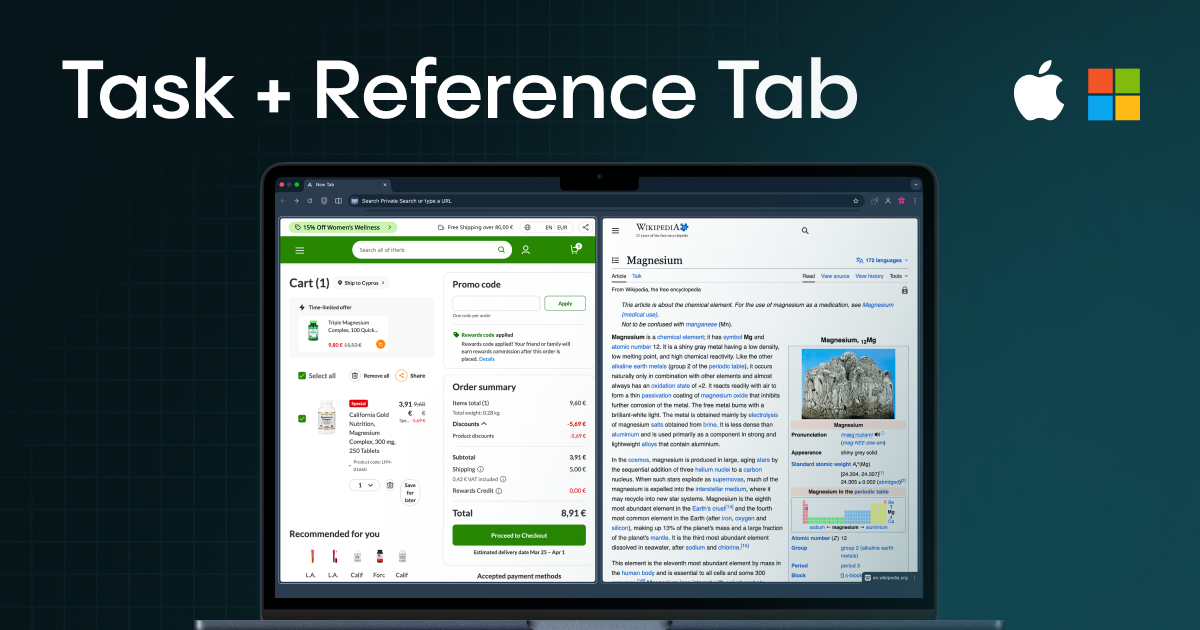
1. Begin with a “main task + reference” setup
One of the easiest ways to use Split View is to pair your current task with a reference page.
Examples:
- Writing + source article
- Shopping cart + product page
- Email or web form + details from another page
This setup keeps your workflow focused and saves time switching between tabs.
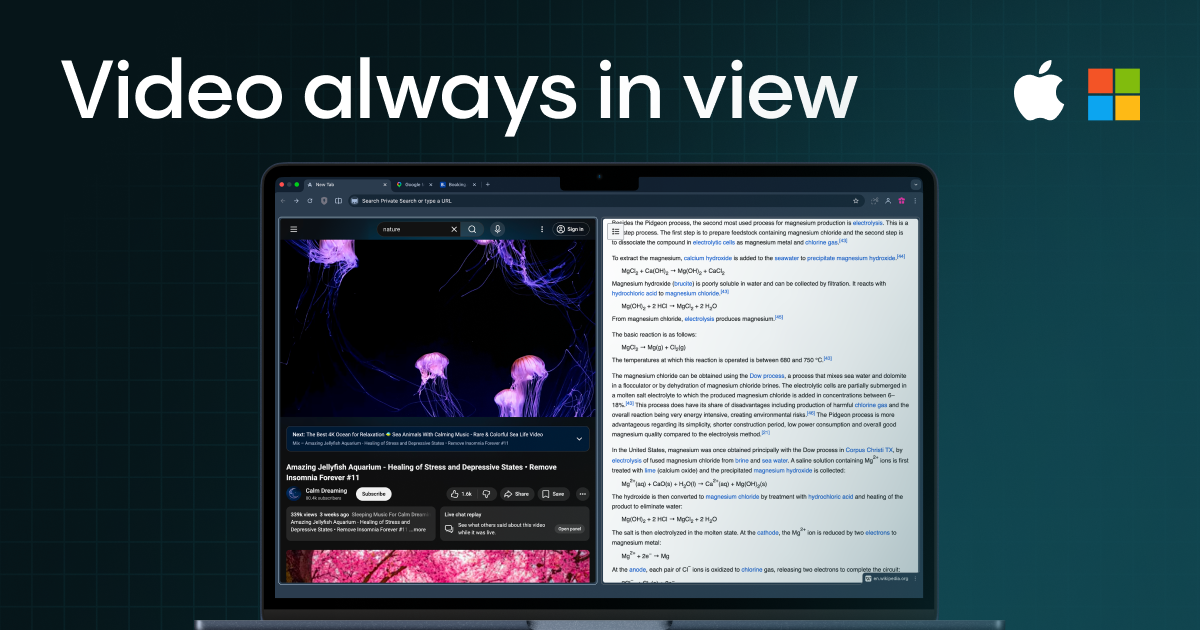
2. Keep a video open while you browse
Split View is a great way to keep a video visible while you continue browsing in the second pane.
This works great for:
- Tutorials
- Lectures
- Recipes
- Workout videos
- Live events you want to watch while reading something else
3. Use one side for reading and the other for note-taking
If you do research often, this setup can make a real difference.
Open one side for:
- an article
- a PDF
- a document
Use the other side for:
- a notes app
- a document editor
- a web form
Everything stays visible, so you can stay in flow without flipping between tabs every few seconds.
4. Use Split View for translation or rewriting tasks
Open the original page on one side and your destination page/editor on the other.
This works well for:
- Rewriting text
- Translating content
- Filling in forms from source documents
- Copying details accurately
It’s a simple trick, but it cuts mistakes because everything stays visible.
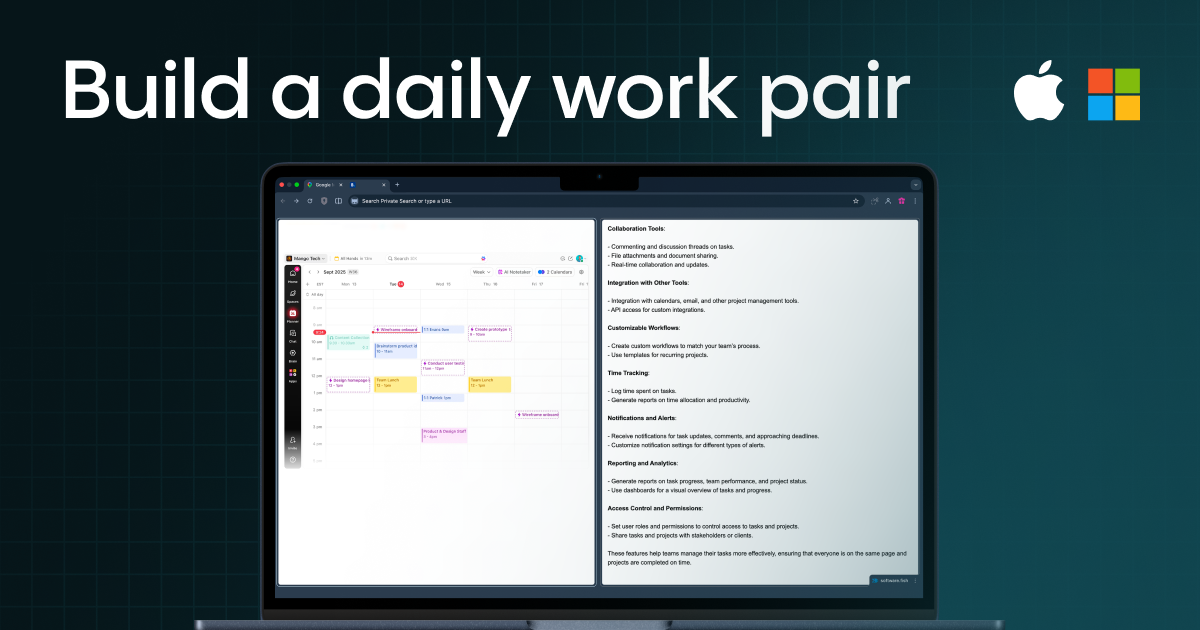
5. Build a repeatable “work pair” for daily tasks
Most people repeat the same tab combinations every day.
Examples:
- Calendar + project board
- Inbox + CRM
- Docs + dashboard
- Community/forum + support page
Once you find your best pairings, Split View starts feeling like your default way to work — not just a feature you use occasionally.
Final tip: Begin with a use case you already do daily
If you want Split View to stick, don’t overthink it. Pick one task you already do often — like reading while taking notes, watching tutorials, or working from a source page — and try it there first.
Split View in Aloha Browser was built to make multitasking feel smoother inside a single window, and once you get used to it, it’s hard to go back.
How to enable Split View Mode?
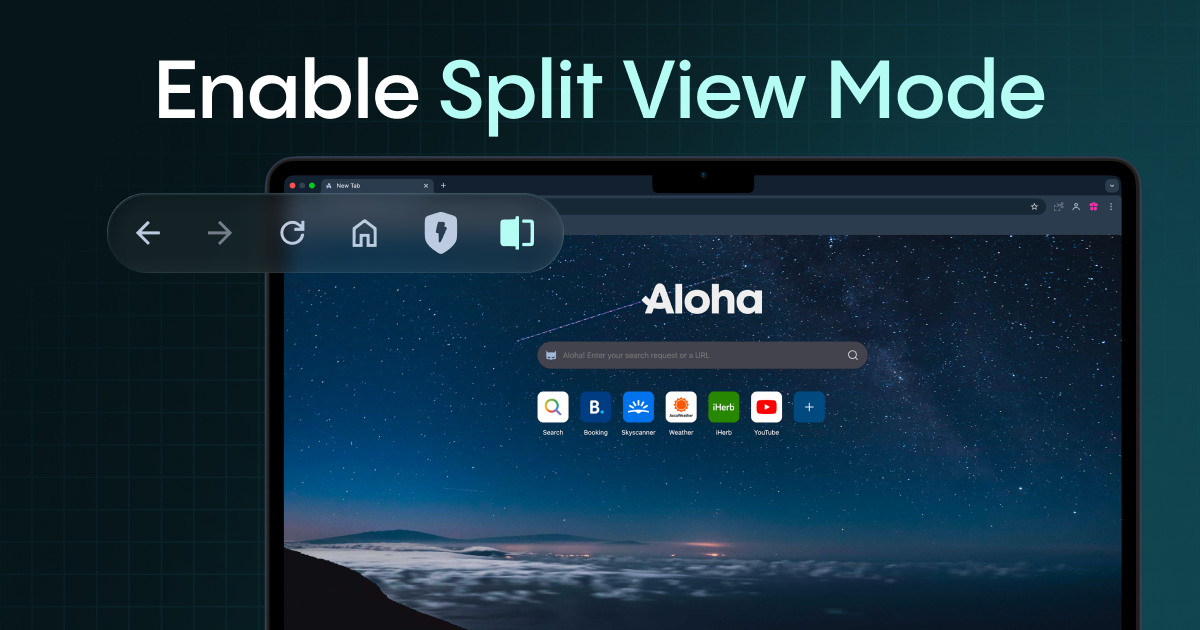
To enable Split View in Aloha Browser, open the tab you want to keep visible, then use one of these options:
- Click the Split View button next to the VPN button, or
- Right-click any open tab and choose Add tab to Split View.
Aloha will place that tab next to your current page and instantly switch to a two-pane layout. It’s a quick way to multitask without constantly jumping between tabs.
If you want to go back to the regular tab layout later, click the Split View button again and select Separate View.
We'd love to hear what you think. Drop your thoughts into the comments or share them with the community at our community page. If anything feels off or you run into a bug, our support team is always here at support@alohabrowser.com.
Related reading
- Aloha Browser Desktop Update: Special Premium Deals and Arabic language
- Expanding the Aloha Ecosystem: Native Linux Support Is Here
- The latest version of Aloha Browser for Windows PCs is now available
Our partners