Wi-Fi File Sharing: Transfer Files Between Phone, Laptop & Tablet
Tired of cables, compressed photos, and messenger file limits? Wi-Fi File Sharing in Aloha Browser lets you browse, stream, and download files across devices over a local connection – redesigned and now free for everyone.

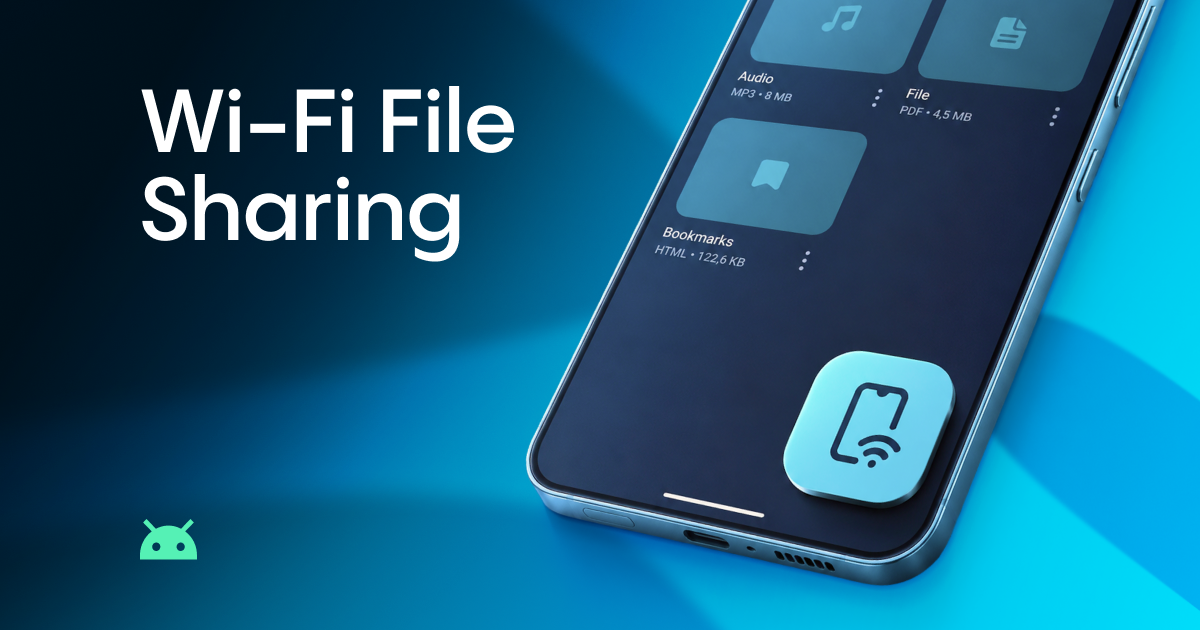
Wi-Fi File Sharing in Aloha Browser just got a complete overhaul – browse, stream, and share files between devices over your local network, now free for all users.
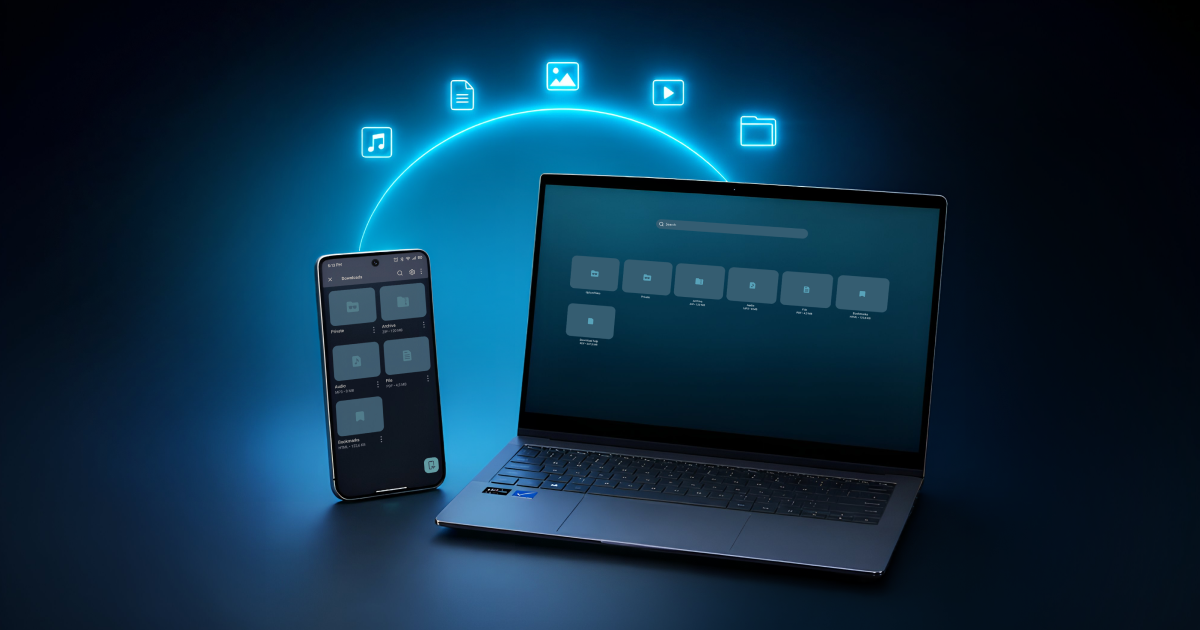
Transferring files from your phone to a laptop shouldn't require a workaround. And yet, most of us still email files to ourselves, hunt for a cable, or upload to a service just to download them on the other side.
And when you want to share something with someone nearby – say, photos from a trip or a document for a colleague – it usually means opening a messenger. Which often means compressed images, lower video quality, and files routed through a server somewhere on the internet – even though the other person is sitting right next to you. And if the file is large, you might not be able to send it at all: most messengers and email services have size limits that get in the way fast.
We've had Wi-Fi File Sharing in Aloha Browser for a while, but with this update, we gave it a complete overhaul – new interface, new capabilities, and it's now free for all users, not just Premium. The redesigned version is rolling out on Android first, with iOS coming soon.
How it works
When you turn on Wi-Fi File Sharing, your phone starts a local server on your Wi-Fi network. Any device connected to the same network – a laptop, a tablet, another phone – can open a link in its browser and see the files and folders you've chosen to share.
The other person doesn't need to install anything. They open a URL to see a file manager with your selected folders. It works across platforms: Android, iPhone, Windows, Mac, and Linux – if there's a browser, it connects.
Files move directly between devices over the local network. Nothing gets compressed, nothing leaves your local network – completely private.
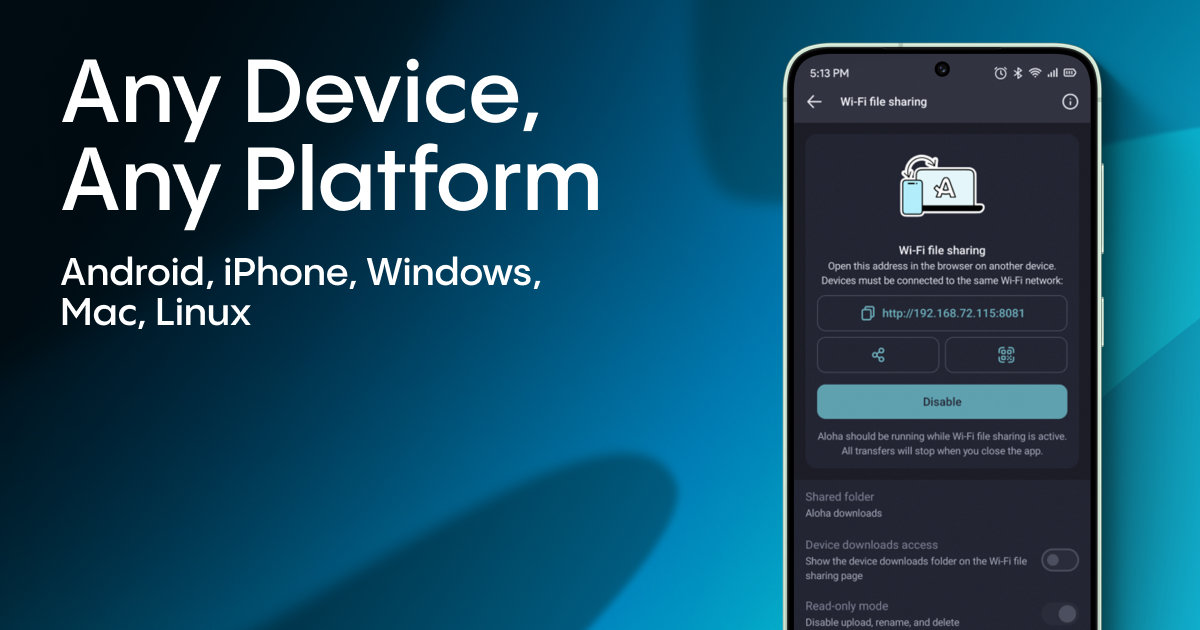
When it comes in handy
How to access your phone files from a laptop
You're at your desk and realize the file you need is on your phone. Instead of reaching for a cable or opening yet another app, you open the Wi-Fi File Sharing link in your laptop's browser. From there, you can browse folders, preview files, or stream a video right in the browser without downloading it first.
Sharing with someone nearby
A friend wants the photos you took yesterday. A colleague needs a PDF. Instead of sending files through a messenger – where photos lose quality, videos get compressed, and large files may not go through at all – they connect to your Wi-Fi, open a link, and access what they need directly from your phone. Everything transfers in full resolution, exactly as it is on your device.
No Wi-Fi network nearby? Use your hotspot
This is one of those things not everyone knows about: you don't need a Wi-Fi network to use Wi-Fi File Sharing.
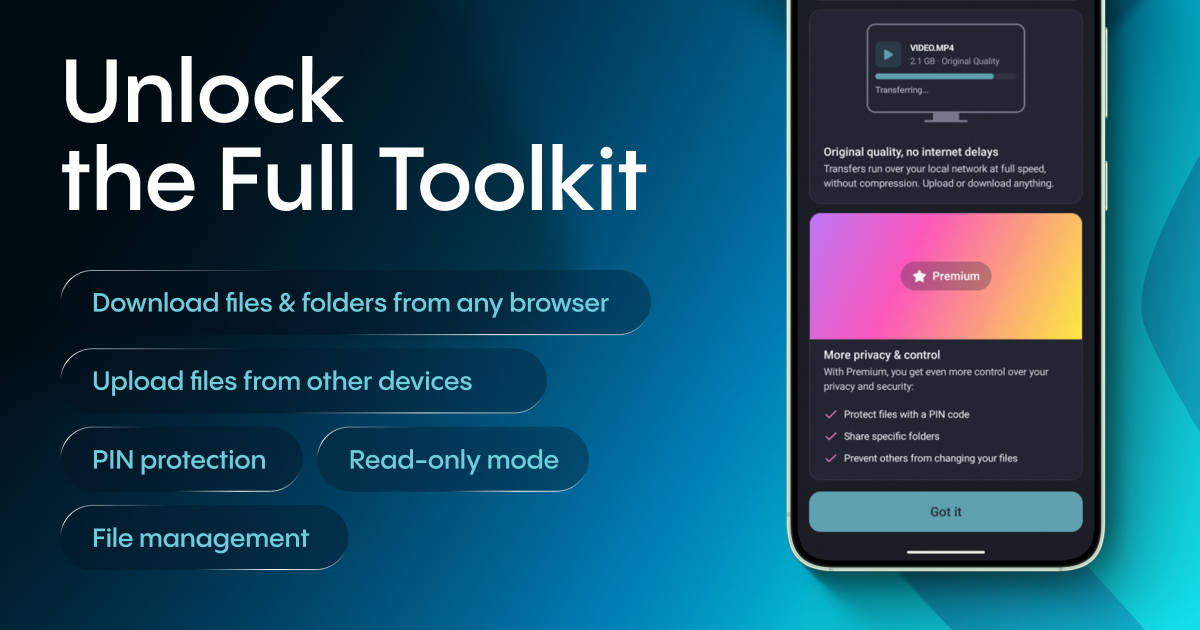
If you're outdoors, traveling, or in a place without a network, turn on your phone's mobile hotspot. The other device connects to it, and Wi-Fi File Sharing works over that connection – completely offline, no internet required.
To set it up:
- Turn on your phone's mobile hotspot in system settings.
- Connect the other device to that hotspot.
- Open the Wi-Fi File Sharing link in its browser.
This is especially handy when you're out with friends and want to exchange photos or videos on the spot, without relying on mobile data or messenger compression.
What the web interface can do
Free for everyone
The browser-based file manager is more capable than you might expect:
- Browse and navigate folders, switch between grid and list views
- Stream video and audio directly – watch or listen without downloading
- View photos in a full-screen gallery with navigation
- Search files and folders by name
Downloading is also free when the other device connects through Aloha Browser – so if your friend has Aloha installed, you both get the full sharing experience at no cost.
More with Premium
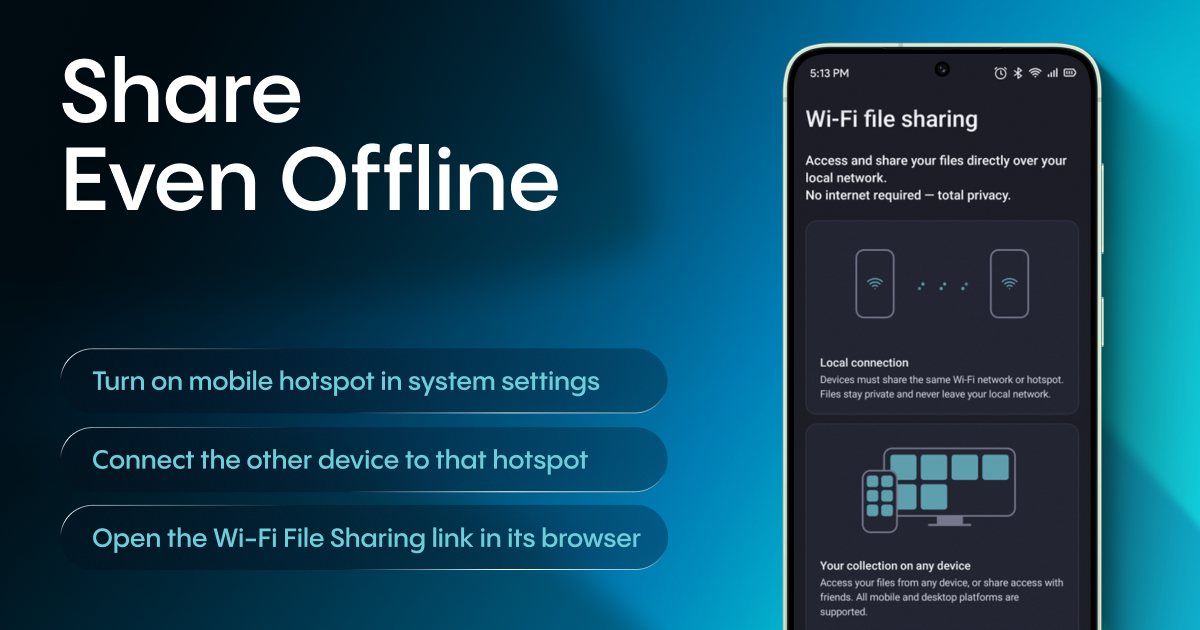
With Aloha Premium, you unlock the full toolkit:
- Download files and folders from any browser – individually, as a selection, or entire folders at once
- Upload files to your phone from another device – useful for collecting files from friends or moving things from your laptop
- PIN protection – require a code before anyone can access your files
- File management – rename and delete files remotely
- Control read-only access – let others browse and download content without making changes, or grant permissions to upload or delete content
Getting started
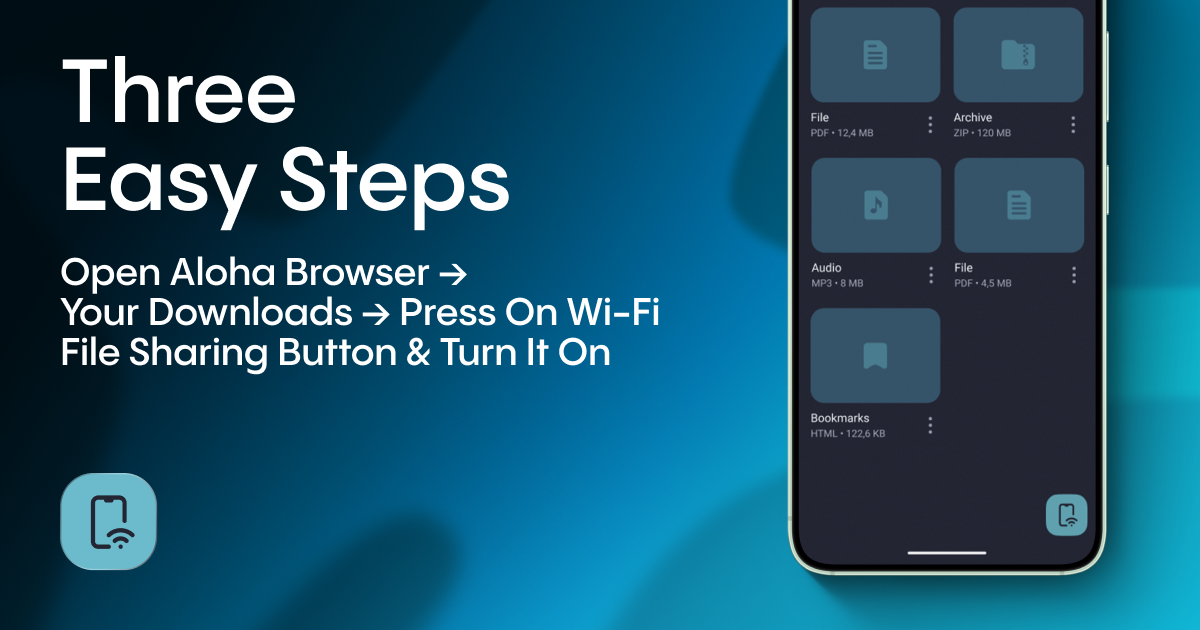
- Open Aloha Browser on your phone.
- Go to Settings → Wi-Fi File Sharing and turn it on. You can also find it in the Downloads section.
- Share the link or QR code with the device you want to connect.
On the other side, they open the link in any browser – and they'll see your shared folders right away.
Frequently asked questions
Do I need an internet connection?
No. Both devices just need to be on the same Wi-Fi network. You can also use your phone's hotspot, which works without any internet connection at all – handy for sharing files offline while traveling or outdoors.
Can I send photos and videos without losing quality?
Yes. Files transfer exactly as they are – no compression, no resizing. Unlike messengers that reduce image and video quality to save bandwidth, Wi-Fi File Sharing sends the original files directly between devices.
Can I transfer files between Android and Mac, or Android and iPhone?
Yes. The receiving device just needs a browser – it works with Windows, Mac, Linux, iPhone, iPad, ChromeOS, and anything else that can open a web page. The updated version of Wi-Fi File Sharing is currently available on Android, with iOS coming soon.
Is there a file size limit?
There's no practical limit from Aloha's side. You can send large video files, photo libraries, or anything else – transfers are limited only by your device's storage and Wi-Fi speed.
Is Wi-Fi File Sharing free?
Yes, the core experience – browsing, previewing, streaming, and searching – is free for every Aloha user. Downloading is also free when the other device connects through Aloha Browser. Full download access from any browser, uploads, file management, PIN protection, and read-only mode are part of Aloha Premium.
Is it safe?
Files move directly between devices over your local network. Nothing is uploaded to any external server. With Aloha Premium, you can also set a PIN code to control who can connect and enable read-only mode for extra protection.
Give it a try
Update your Aloha Browser and try Wi-Fi File Sharing – whether it's for moving files to your own laptop or sharing with someone nearby.
If you want the full experience with downloads, uploads, file management, and PIN protection, you can start with a free one-week Premium trial.
Support the development of new great features by subscribing to Premium. We don’t log or sell any data, and we appreciate your help and support!