Aloha Browser Desktop Update: New VPN Menu + Passcode on macOS
Your VPN access just got faster, and macOS just got safer. Meet quicker VPN access and Passcode for extra privacy.


Want faster VPN controls and an extra layer of privacy on desktop? This new Aloha Browser update brings a refreshed VPN menu and Passcode — previously available on Windows, now also on macOS — so you can browse more smoothly and keep your sessions protected.
VPN Menu Update: Faster Access, Cleaner Controls
VPN is one of those features you want to manage in seconds — especially when you’re switching networks, traveling, or just trying to browse with fewer interruptions. That’s why in this update we redesigned the VPN menu to make it simpler, clearer, and quicker to use.
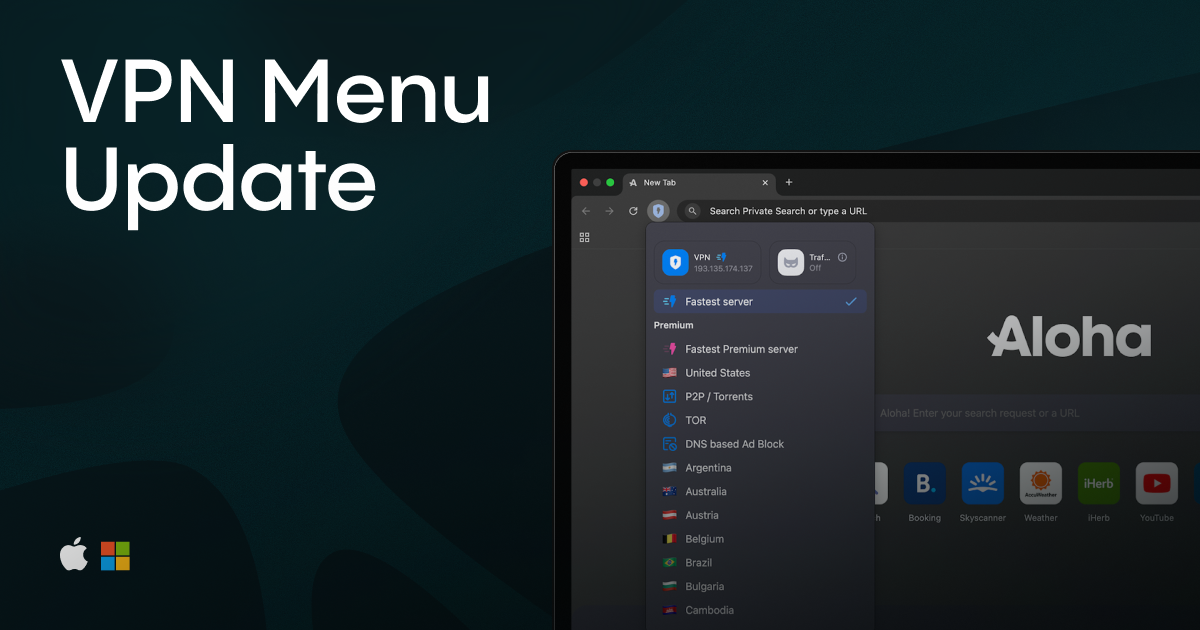
What’s improved in the new VPN menu:
- More understandable display of VPN and TrafficMask status — in the menu, you can instantly see whether VPN or TrafficMask is on or off
- A cleaner layout — the most important actions are easier to find
- Smoother switching — changing VPN servers feels more straightforward and less “buried in settings”
The idea is simple: the VPN menu should help you stay protected without slowing you down. With these changes, your privacy controls are always within reach — and easier to understand at a glance.
Passcode Is Now Available on macOS
Passcode protection in Aloha Desktop is no longer Windows-only. With this update, Passcode is now available on macOS, giving Mac users the same extra layer of privacy that Windows users already had.
If you share a computer, work in a public space, or just want more peace of mind, Passcode helps keep your browsing private even when you step away.
Once enabled, Aloha can require a passcode to open the app (or return to it), helping protect:
- Your tabs and browsing sessions
- Your history and bookmarks
It’s a small feature that makes a big difference — especially on shared devices.
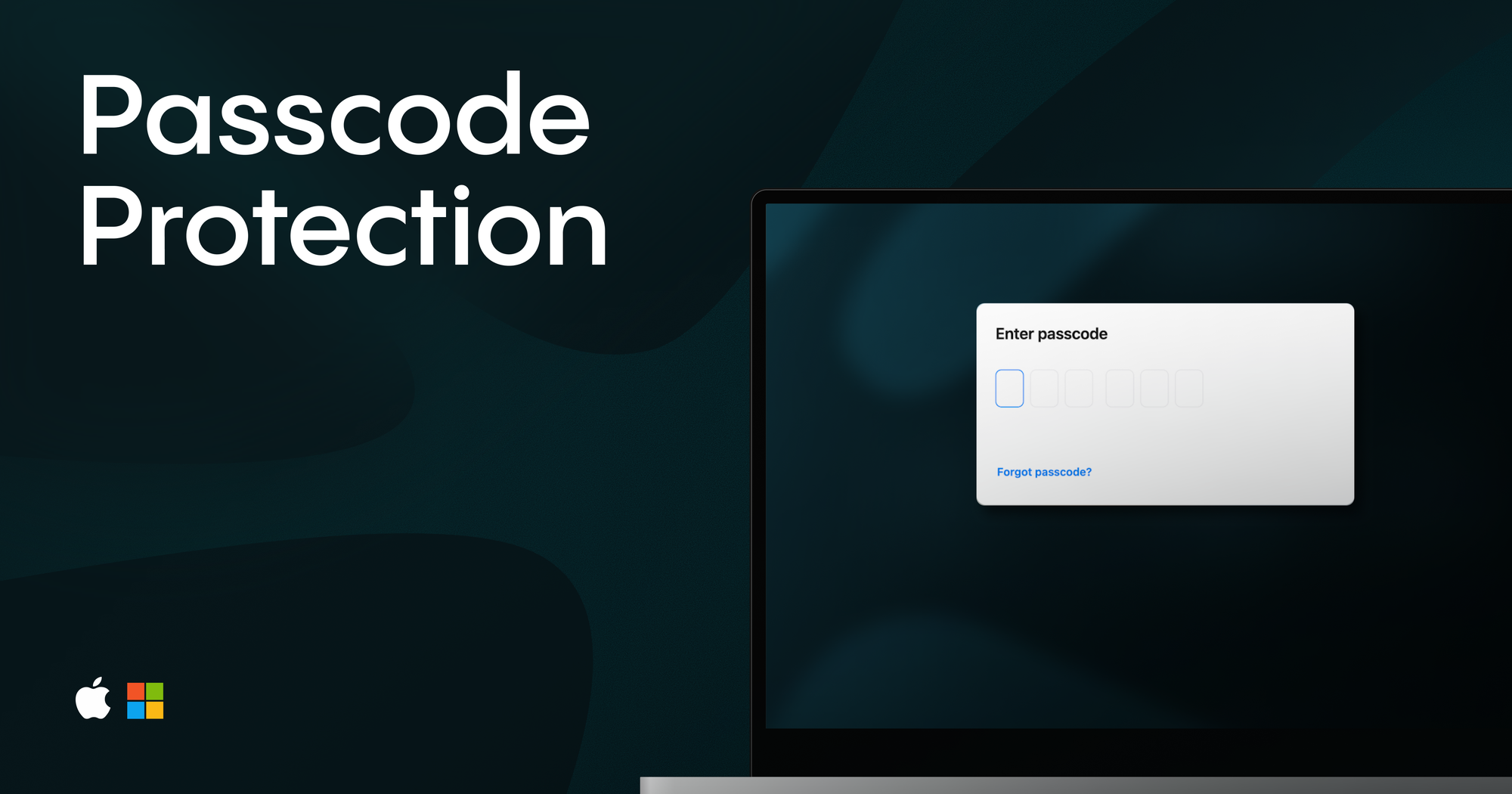
How to enable Passcode?
There are a small instuction how to enable passcode:
1) To set up Passcode on macOS, open Aloha and click the three dots menu to open the menu.
2) Go to Additional Settings → Passcode → Set up a Passcode.
3) Create a numeric passcode and fill in the form — and make sure you don’t forget it, because you’ll need it to unlock the browser.
4) Then choose the protection options you prefer, like the lock scope (what exactly gets locked) and the auto-lock timer.
After that, you can use the Lock button anytime to quickly enable Passcode when you step away from your computer.
Update and Try It
Make sure you’re running the latest version of Aloha Browser on macOS and Windows to get the new VPN menu and Passcode. As always, we’re continuing to improve Aloha with updates that make browsing faster, simpler, and more private.
We built this update to make Aloha Browser faster, easier, and more enjoyable to use. Give the refreshed VPN menu a try, set up Passcode on macOS, and tell us what you think. Share your feedback in the comments or on our community page — and let us know what you’d love to see next. Stay tuned: more exciting updates are on the way!
Related reading
- Public Wi-Fi Is Easy. Privacy Should Be Too.
- The Power of VPNs: A Must-Have for Your Online Adventure
- Introducing TrafficMask: A Simple Guide for Everyone
Our partners