
Built around your requests: What's new in Aloha for Android 8.9.0
Many changes in Aloha for Android 8.9.0 were driven by your requests, including tab swipes, history cleanup, bookmark sorting, and nested Trash navigation.

Many of the changes in Aloha Browser for Android 8.9.0 began with user requests. You asked for faster ways to switch between tabs, more control over what gets deleted from history, cleaner bookmark screens, and fewer trips into settings. This release brings those requests together in seven practical updates.
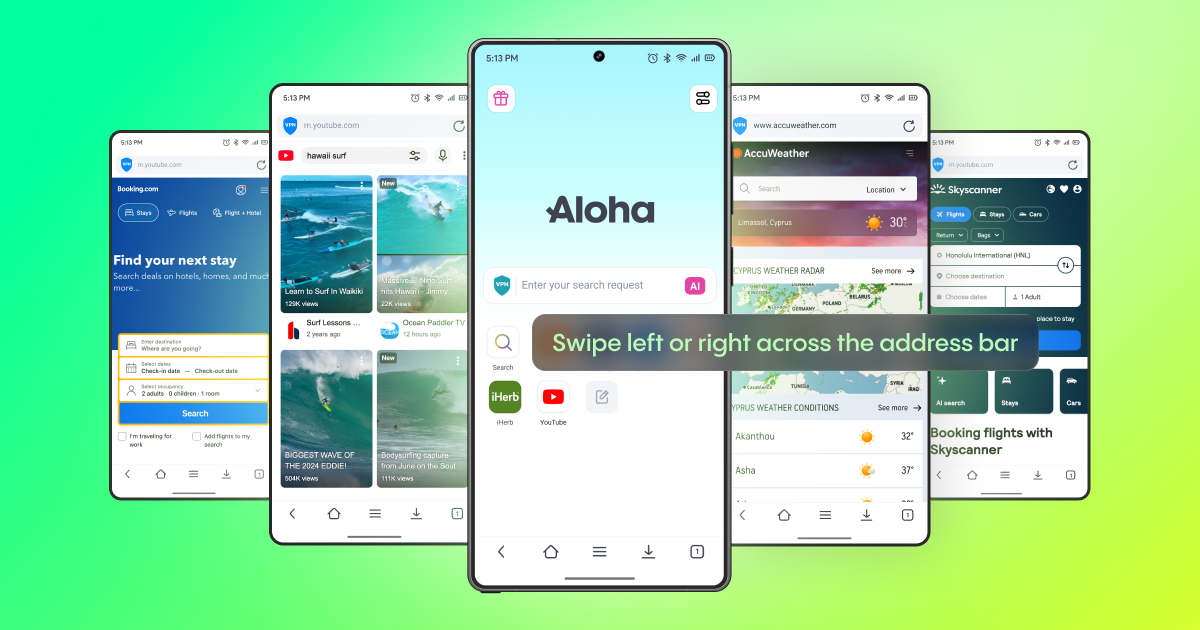
Switch tabs with a swipe
Keeping several tabs open should not require you to return to the tab manager every time you switch between them. Swipe left or right across the address bar or the bottom toolbar to bring the neighboring tab into view. Drag past the middle of the screen or give it a quick flick to switch. Let go earlier to stay on the current tab. The gesture works like tab swiping in Chrome for Android and Aloha for iOS.
Swipe forward from your last open tab, and Aloha creates a new tab showing the Start page. In private mode, the new tab is private too. If you keep the search bar at the bottom of the screen, you can swipe there to change tabs as well.
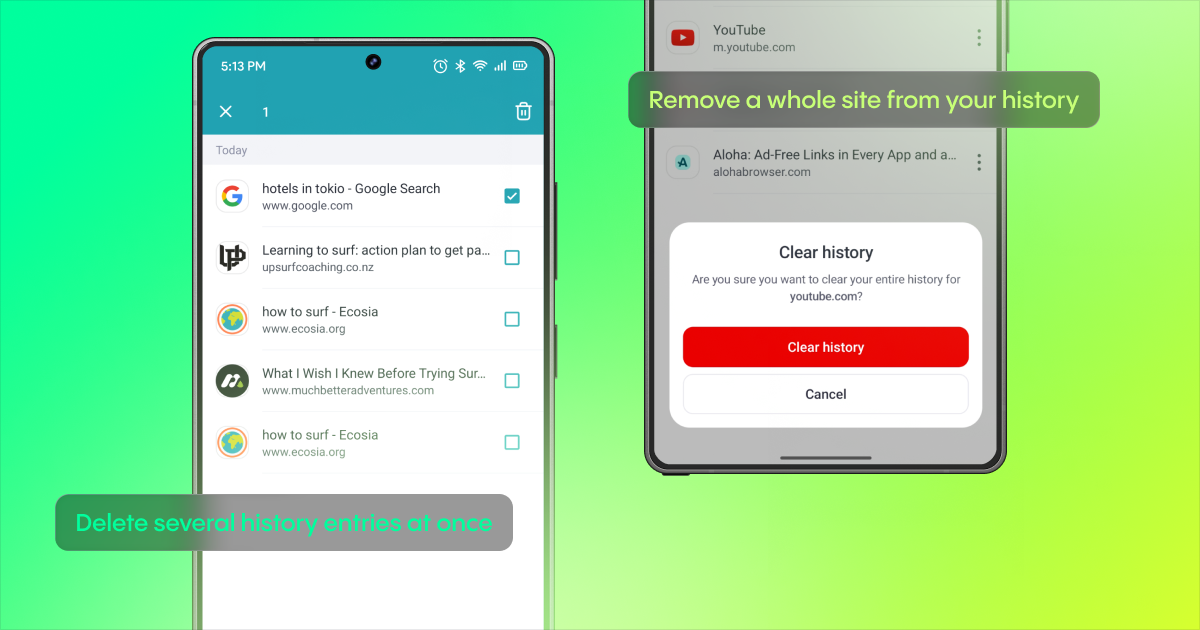
Delete several history entries at once
Time-based history cleanup works when you want to clear an entire hour or day, but it is too broad when only a handful of entries need to be removed. Selection mode lets you remove that handpicked group in one pass while keeping everything else.
Long-press an entry, select the records you want to remove, then tap the trash icon. The toolbar counter shows how many you selected. Deletion starts immediately without a confirmation dialog, so check the count first. Selection mode also works in history search results.
Remove a whole site from your history
If a site has accumulated many visits over weeks or months, removing each entry by hand is tedious. Clearing everything would also remove pages you want to keep. Deleting all history for this site removes every recorded visit to a single domain while keeping unrelated history.
Open the context menu on any entry from that site, choose Delete all history for this site, then confirm Clear history.
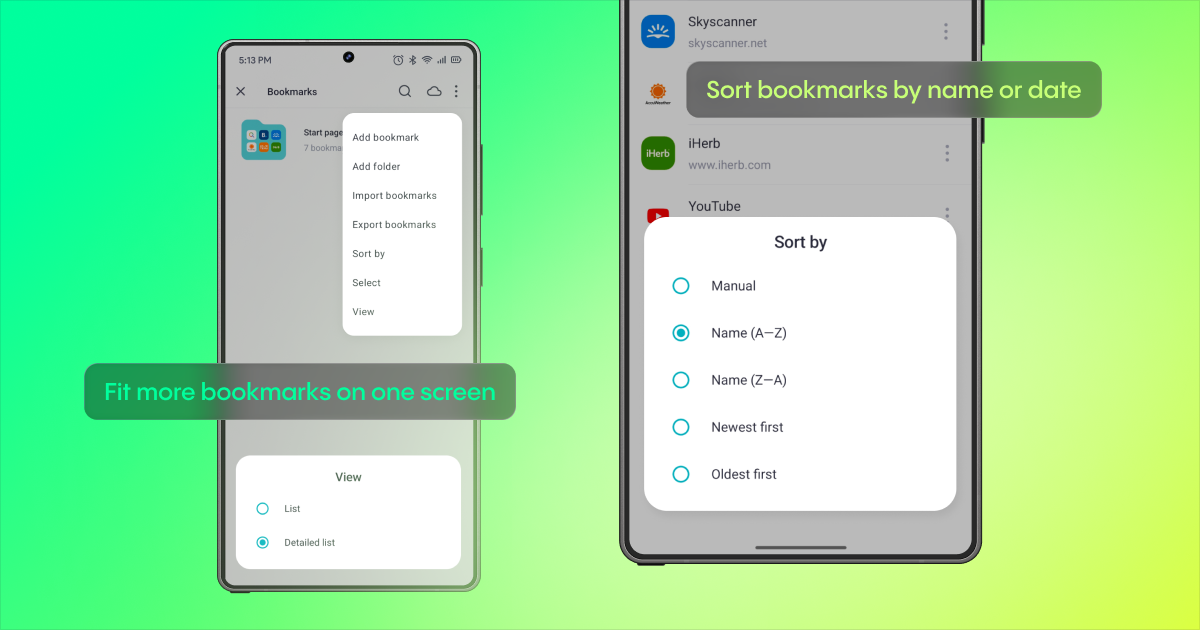
Fit more bookmarks on one screen
A long bookmark collection can mean a lot of scrolling. The compact list shows only the site icon, name, and domain on screen, so you can see more saved pages at once. The detailed view is still available when you want it.
Open the menu on the Bookmarks screen, choose View, then select List or Detailed list. Existing users retain the detailed view until they switch to the compact list. New installations start with the compact list by default.
Sort bookmarks by name or date
Sometimes you remember a bookmark's name. Other times, you need the page you saved most recently. Version 8.9.0 lets you sort by name, from A to Z or Z to A, or by date added, with newest or oldest first. Manual remains the default sort mode.
Drag and drop works only when Manual is selected. If you try an automatic sort and then return to Manual, Aloha restores your previous manual order. Sorting applies only to the Bookmarks screen, so bookmarks on the Start page retain their layout.
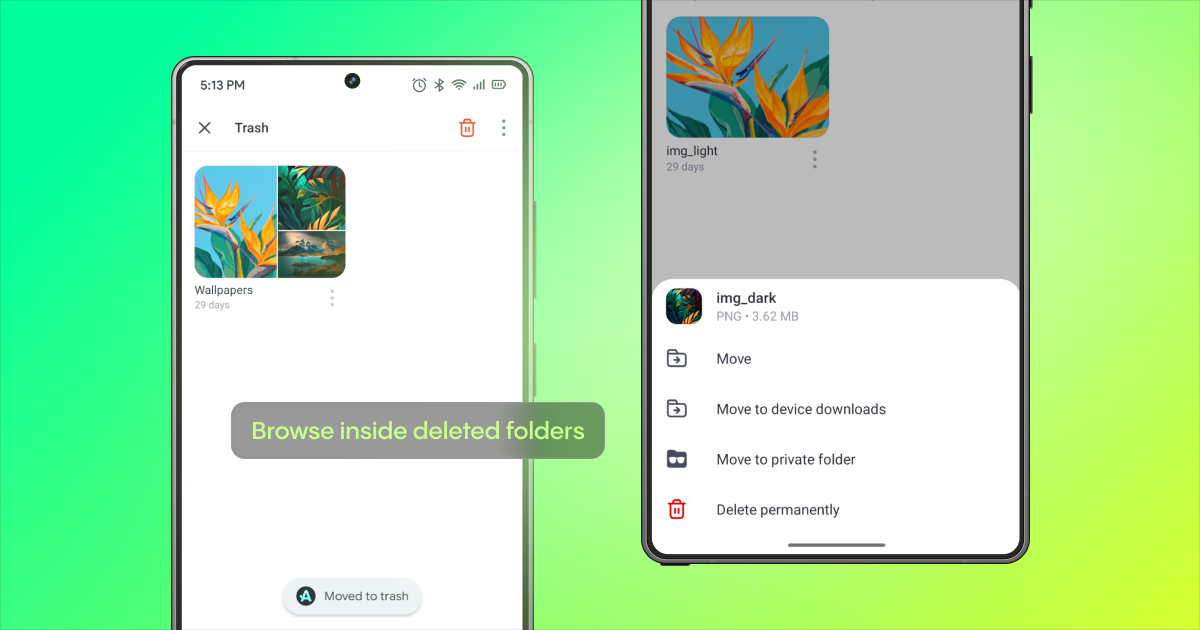
Browse inside deleted folders
Restoring an entire deleted folder just to recover or remove a single file is unnecessary work. In version 8.9.0, you can open the folder in the Trash, review its files and subfolders, and handle nested items separately. You no longer need to restore or delete the entire folder as a single item.
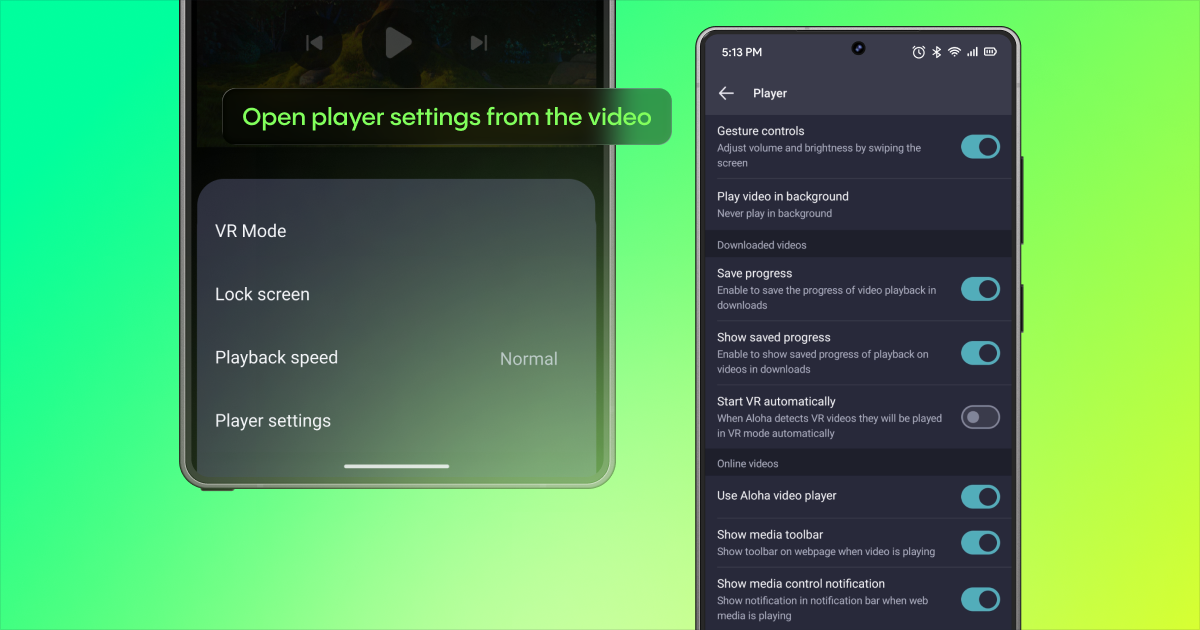
Open player settings from the video
Changing a playback preference should not take you out of the video and into the main app settings. The media player's menu now includes Player settings, which opens the full set of options from the playback screen while the video continues playing. You can adjust gesture controls or background playback without leaving the player.
Get the update
Update Aloha Browser on Google Play to access all seven changes in version 8.9.0. If you missed the previous Android update, it introduced ad blocking for links opened in Android Custom Tabs within supported apps. Read about the previous Android release.
If anything in Aloha still slows you down, send feedback in the app. Many of the changes in this release began with user requests.
Frequently asked questions
How do I switch tabs by swiping in Aloha Browser for Android?
Swipe left or right across the address bar or the bottom toolbar. Aloha moves to the previous or next open tab. If you swipe past the last tab, Aloha creates a new tab showing the Start page. A new tab created in private mode stays private.
How do I remove specific entries or an entire site from my history?
Long-press a history entry to enter selection mode, select the entries you want to remove, then tap the trash icon. To remove all visits to a single site, open the context menu for an entry from that site, choose Delete all history for this site, then confirm Clear history.
How do I use the compact bookmarks view and its sorting options?
On the Bookmarks screen, open the menu, choose View, then select List for the compact layout. Use Sort by to choose Manual, name order, or date order. Drag and drop works only in Manual mode; returning to it restores your previous manual order. Sorting affects only the Bookmarks screen, not the Start page.
Can I open a deleted folder inside the file manager's Trash?
Yes. Open the Trash, then tap the deleted folder. You can review its nested files and subfolders and handle them separately rather than restoring or deleting the entire folder as a single item.
Where do I find player settings while watching a video?
Open the player menu, then tap Player settings. The full player settings are available from the playback screen, and the video continues playing while they are open.